1
Capture any part of any page in seconds
 Best Screenshot
Instant visual feedback with powerful annotations on any selected area — perfect for feedback, bugs, and tutorials.
Add to ChromeCapture any part of any page in seconds
Powerful annotation tools purpose-built for feedback and tutorials
Numbered steps ① ② ③ to guide anyone through any process
Blur sensitive data before sharing — privacy first
Annotate screenshots you already have with "Annotate Local"
Paste, drag & drop, or browse — load images your way
Keyboard shortcuts for blazing-fast annotation
100% local — no account, no cloud, no tracking
Copy to clipboard or download as PNG in one click
Simple enough for anyone, powerful enough for professionals
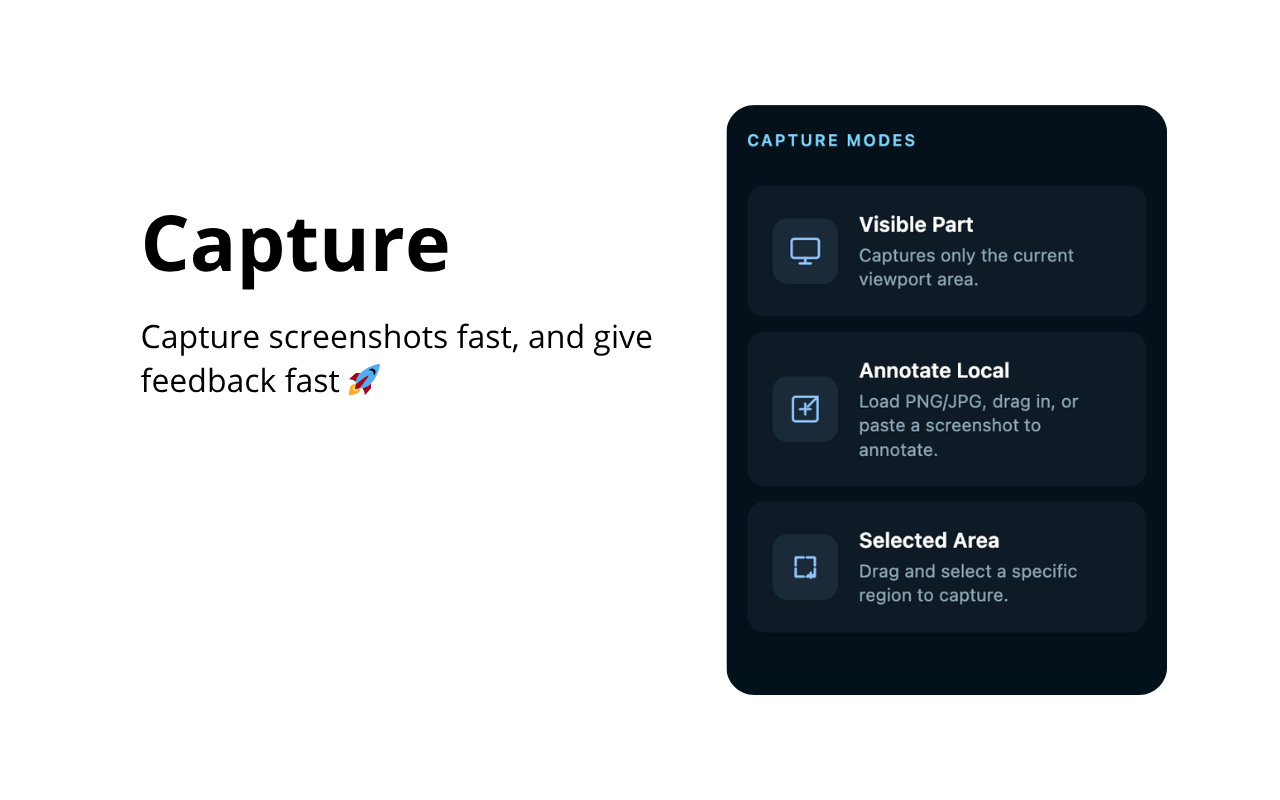
Capture the visible area instantly, drag and select with pixel precision, or load local images. Paste directly from your clipboard or drag and drop images right into the annotator.
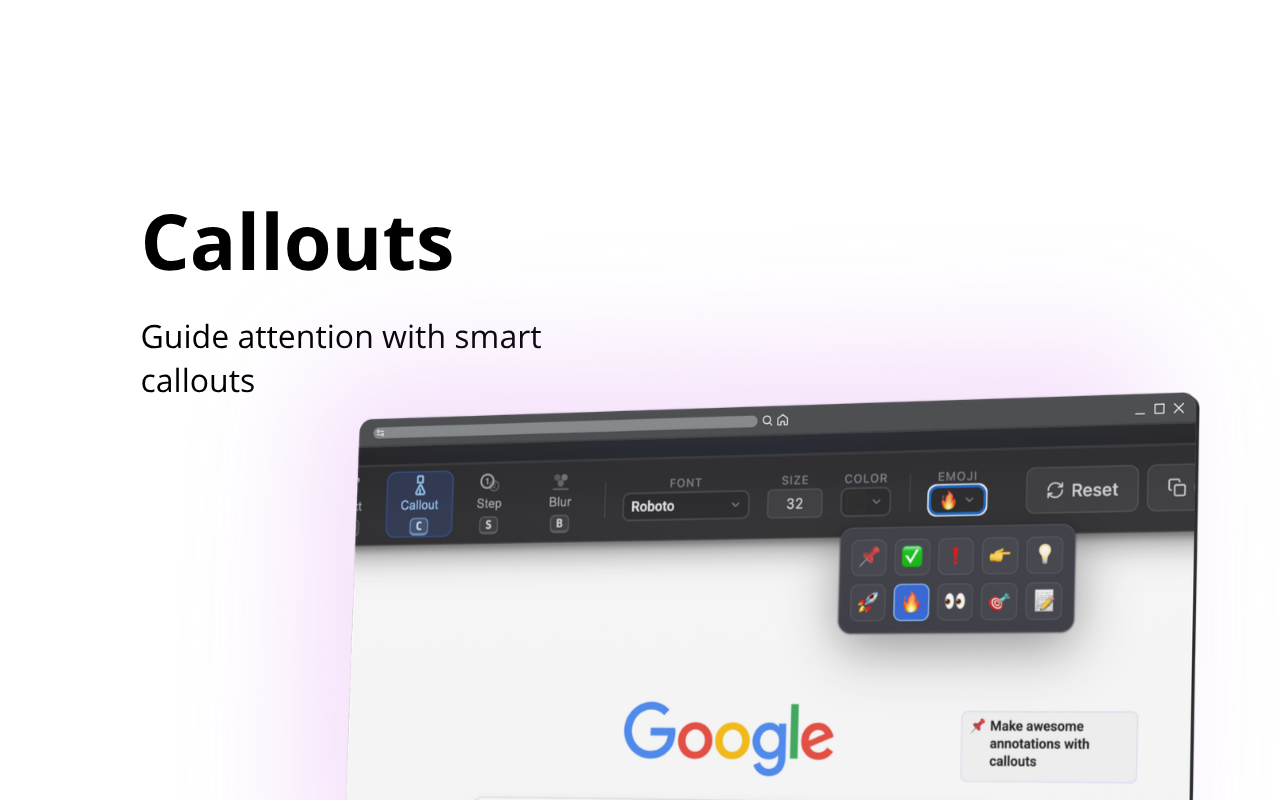
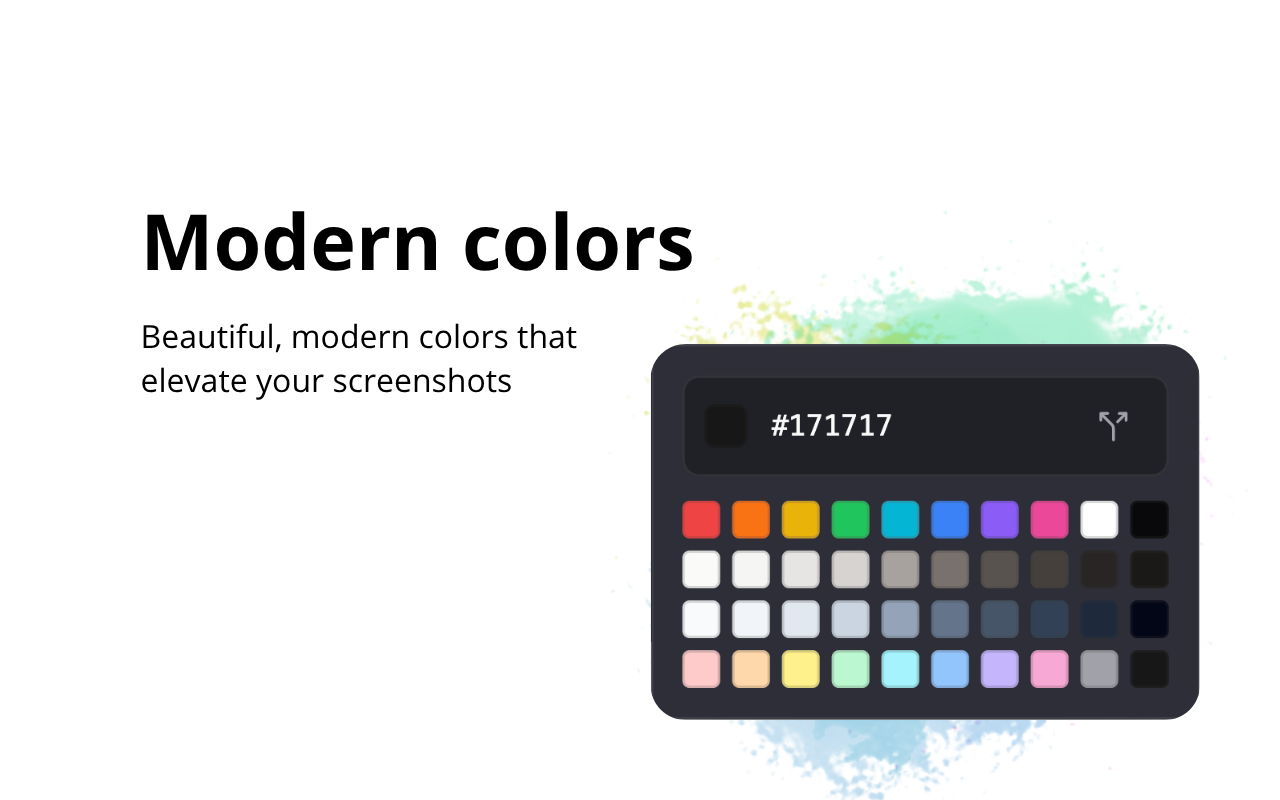
Draw arrows, add custom text (Roboto, Montserrat, etc.), and use emoji callouts for expressive context. Add numbered step markers for tutorials, or blur sensitive areas to protect data. Complete freedom to select, move, resize, and delete.
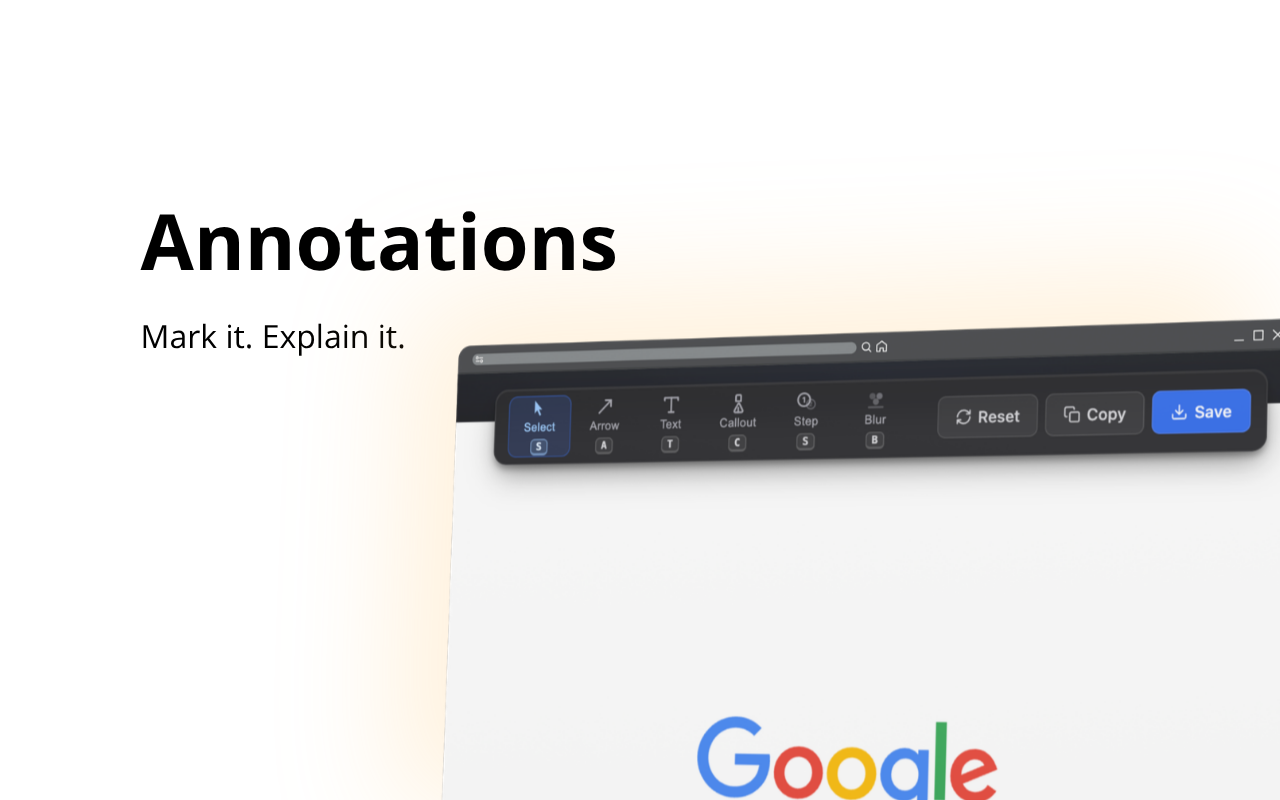
Copy the annotated screenshot directly to your clipboard or download as a PNG with a single click. Made a mistake? Reset all annotations instantly.
Capture and annotate bugs with numbered steps and arrows.
Give clear, visual feedback without lengthy back-and-forth.
Build step-by-step tutorials with numbered markers.
Show exactly where to click, eliminating ambiguity.

I use screenshots constantly at work—to collect feedback on Slack or document a process. It is an essential tool for how I work. I especially love using arrows and annotations when sharing my projects on social media.Diogo Machado
Software Developer